THE CURE FOR THE NOTE 7 SNAPDRAGON VARIANT
Posted: Thu Sep 14, 2017 3:46 pm
---------------------------------------
ADDED Wifi Fix - Jan 5, 2019 thanks Darius Stacked
ADDED walk-through March 23 2018 - RRiVEN
UPDATED LINK Feb 3 2018 - RRiVEN
UPDATED Death ROM Link April 18, 2018 - RRiVEN
This method only works if you have the death update - If you don't have the death update you need to flash it first
You need a SDCARD in your Note 7 for the flashing to work - THIS IS A REQUIREMENT
*Cell Voice and Data may not work after - there are many reports of people not getting their Note 7 to register on the cell network*
Downloads:
Root Firmware
Bootloader File
PIT File
Death ROM - Only need if you have bootloader 1 or 2
Version 1 Original Note 7
Version 2 Green battery
Version 3 Death update
Pros:
-Can charge to 100%
- Rooted
Cons:
-Fingerprint Scanner does not work (iris does)
-Non US users lose the ability to use Cellular, it becomes a wifi only device
--More than a few US users have said they can't use Cellular services either - do this at your own risk
*Don't update SU binary. Will cause bootloop. Turn off. Notifications*
if you have bootloader 1 or 2 you need the Death Rom - go to step 3 and use the files from the Death ROM
Once you up your bootloader version you can't go back down!! - This means that you can't undo this
(Check your baseband version to see what bootloader you have. example: N930W8VLU3APL1)
file/Note7Fix/pit.png
ADDED Wifi Fix - Jan 5, 2019 thanks Darius Stacked
ADDED walk-through March 23 2018 - RRiVEN
UPDATED LINK Feb 3 2018 - RRiVEN
UPDATED Death ROM Link April 18, 2018 - RRiVEN
This method only works if you have the death update - If you don't have the death update you need to flash it first
You need a SDCARD in your Note 7 for the flashing to work - THIS IS A REQUIREMENT
*Cell Voice and Data may not work after - there are many reports of people not getting their Note 7 to register on the cell network*
Downloads:
Root Firmware
Bootloader File
PIT File
Death ROM - Only need if you have bootloader 1 or 2
Version 1 Original Note 7
Version 2 Green battery
Version 3 Death update
Pros:
-Can charge to 100%
- Rooted
Cons:
-Fingerprint Scanner does not work (iris does)
-Non US users lose the ability to use Cellular, it becomes a wifi only device
--More than a few US users have said they can't use Cellular services either - do this at your own risk
*Don't update SU binary. Will cause bootloop. Turn off. Notifications*
if you have bootloader 1 or 2 you need the Death Rom - go to step 3 and use the files from the Death ROM
Once you up your bootloader version you can't go back down!! - This means that you can't undo this
(Check your baseband version to see what bootloader you have. example: N930W8VLU3APL1)
Code: Select all
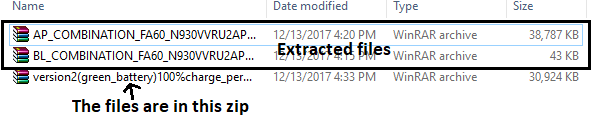
1. Download and extract the files
Code: Select all
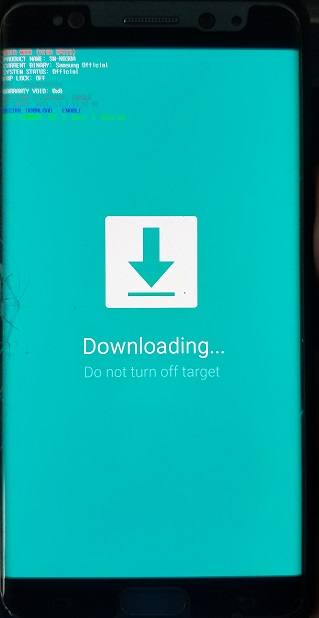
2. Put your phone into download mode by pressing the power button, home button, and volume down button. When you see a blue screen push volume up and connect it to your computer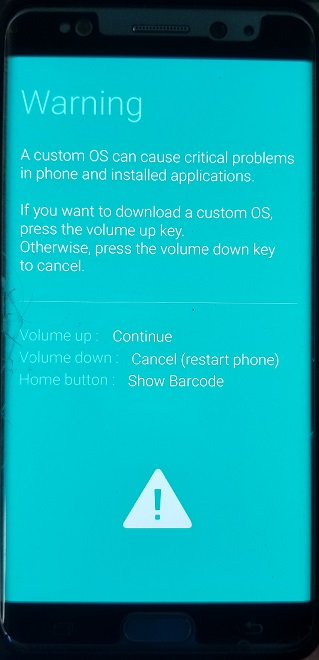
Code: Select all
3. Open Cosmy's Odin(you should see your phone connected with a blue COM with a number after the COM)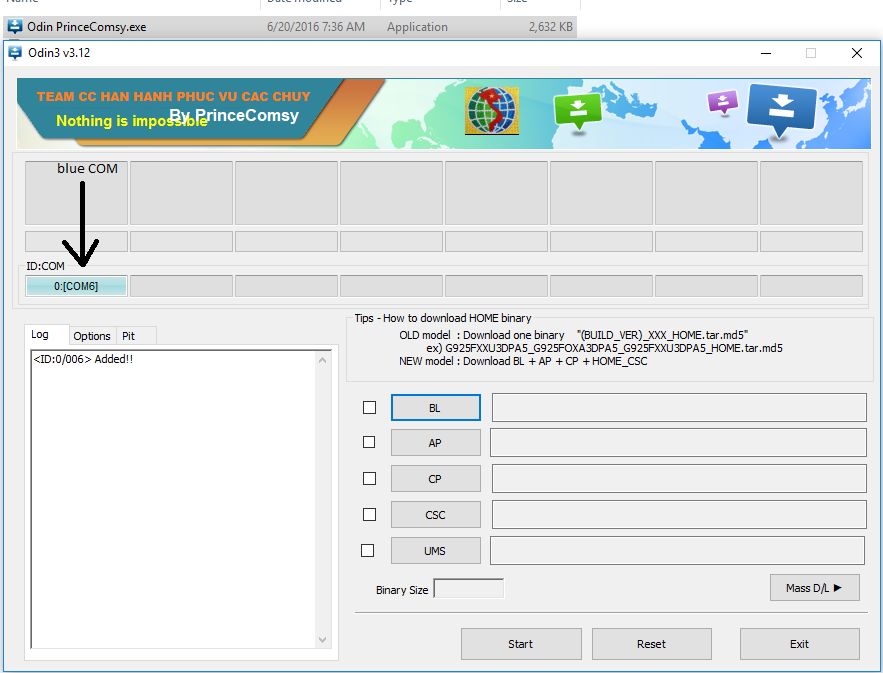
Code: Select all
4. Use the version 3 filesCode: Select all
5. Place the BL.tar file of your version and the AP.tar file of your version in the appropriate Odin slot by clicking either the BL odin slot or AP Odin slot and navigate to where the firmware files of your version are saved on your computer(BL Odin slot-BL.tar - AP Odin slot-AP.tar) then press Flash (Start)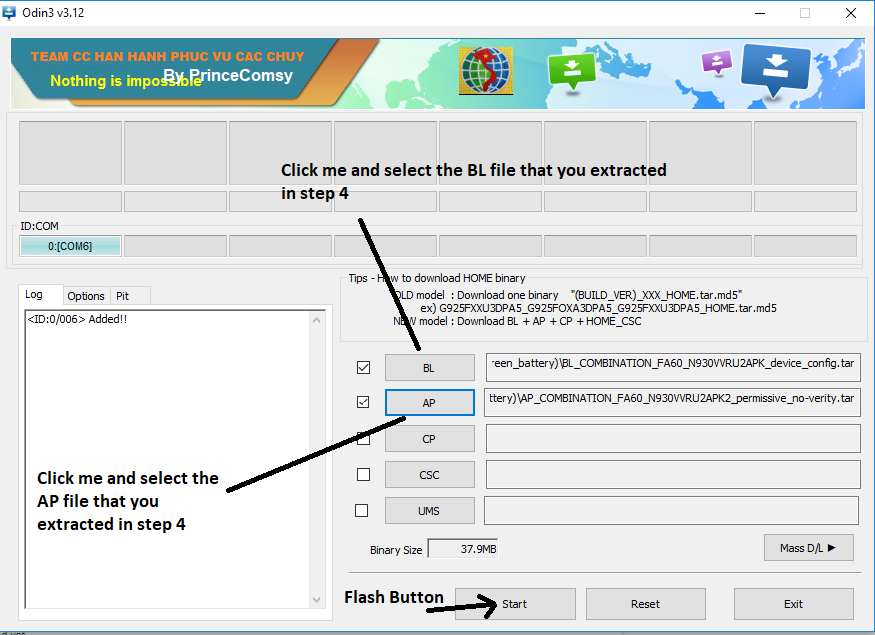
Code: Select all
6. When it is completed it will restart your phone. Place it back into download mode. (See step 2)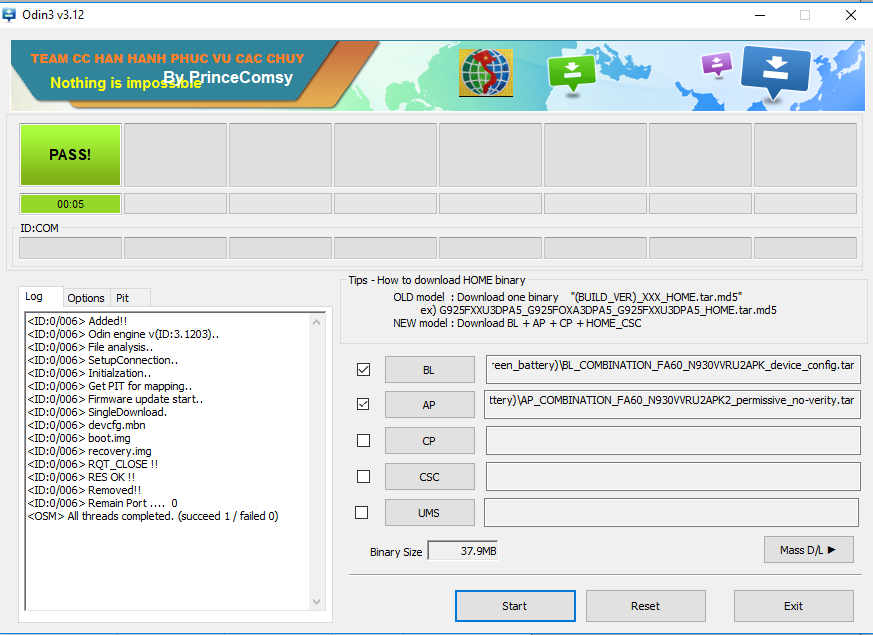
Code: Select all
7. Press reset on OdinCode: Select all
8. FLASH THE PIT FILE When it reboots go back into download mode (see step 2)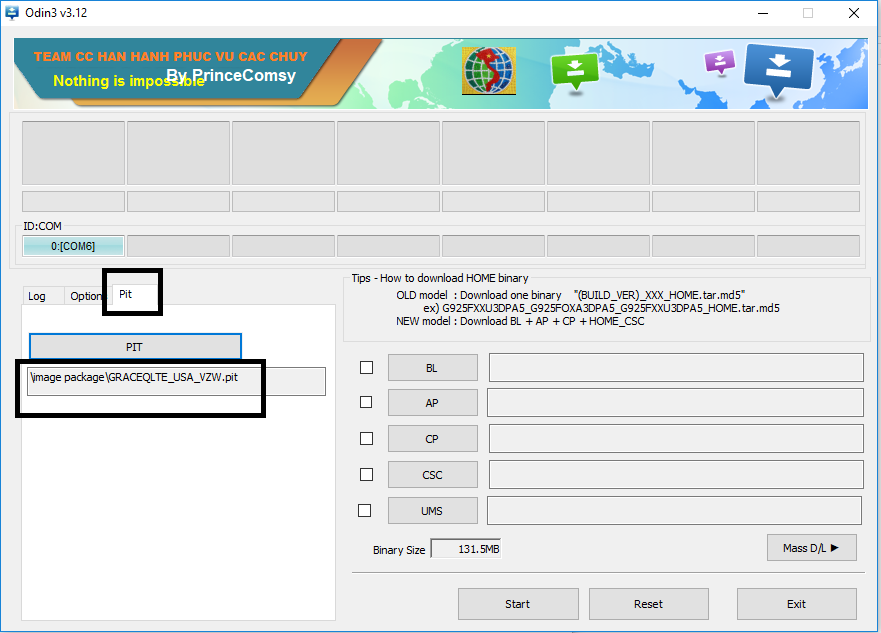
Code: Select all
9. FLASH THE SYSTEM1.IMG.TAR FILE IN THE "AP" ODIN BUT YOU HAVE TO TICK THE "T-FLASH" OPTION TO FLASH IT.
This flash takes longer than the first flash Don't rush.
 When it reboots go back into download mode (see step 2)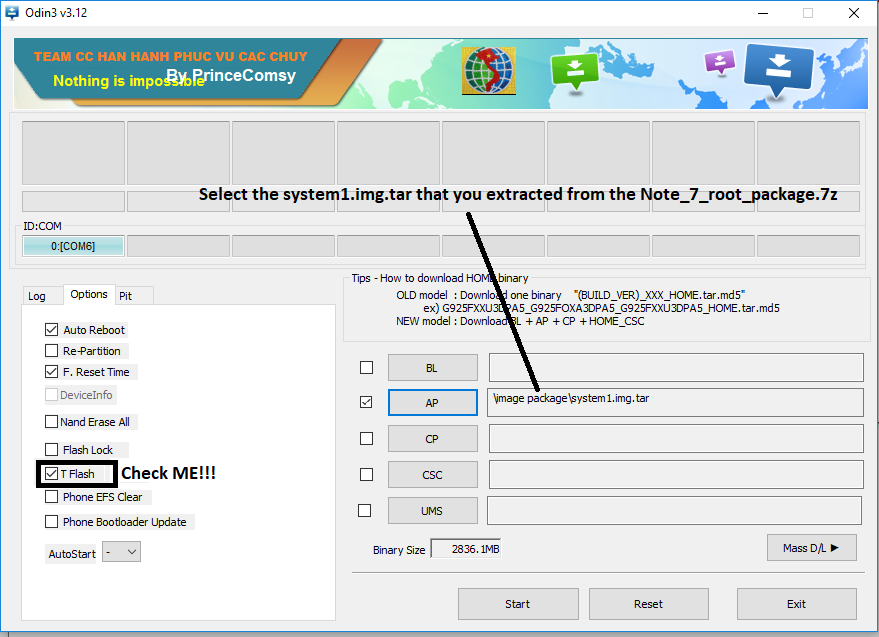
Code: Select all
10. Press reset on Odin (MAKE SURE T-FLASH IS NOT CHECKED!!!) PUT THE CP IN THE "CP" SLOT, AND LASTLY PUT THE CACHE.IMG.TAR IN THE "CSC" SLOT and flash.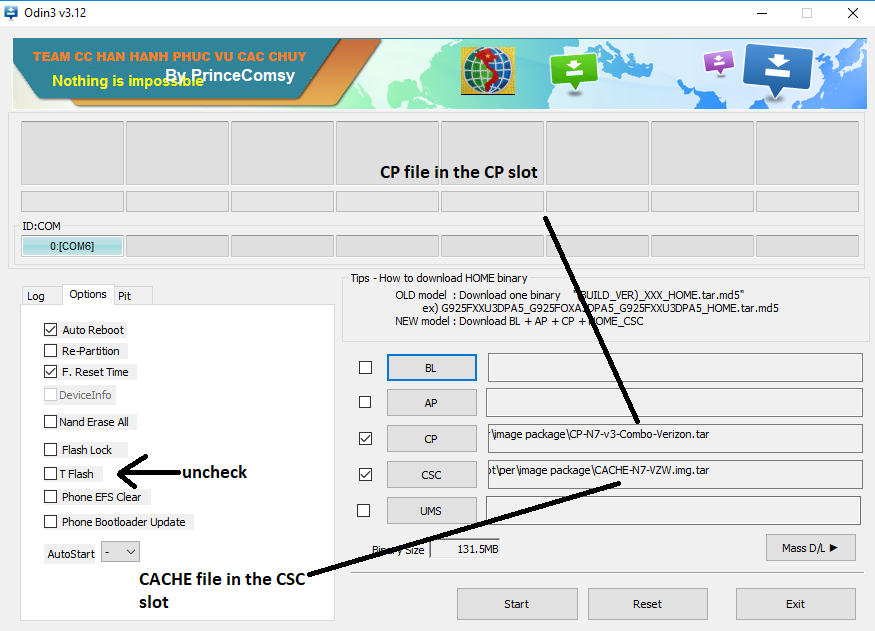
Code: Select all
11. NOW YOU WAIT, IT TAKES 20-40 MINS TO BOOT UP BUT WHEN YOU DO, YOU ARE FULL SUPERSU ROOTED AND THE SYSTEM PARTITION IS REMOUNTED AS RW AND ERRORS=CONTINUE(FIXES KERNEL PANICS). CONGRATS!!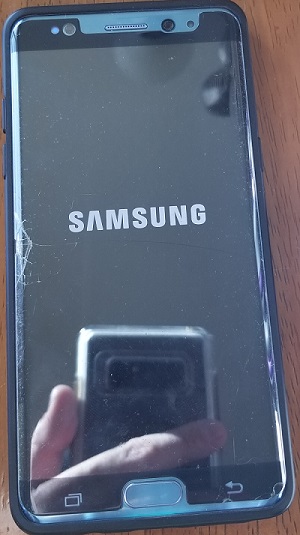
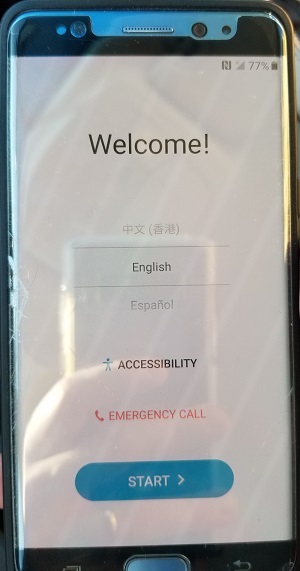
Code: Select all
12. Install SuperSU (and Root checker to check) so you have complete root access. DO NOT UPDATE THE SU BINARY just turn off notifications in the app 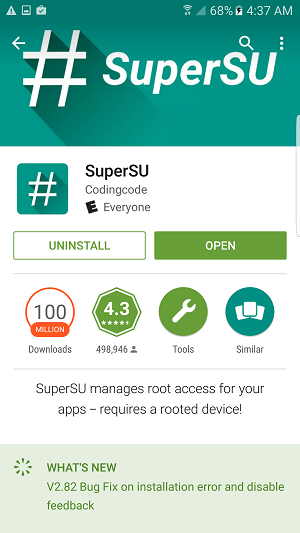
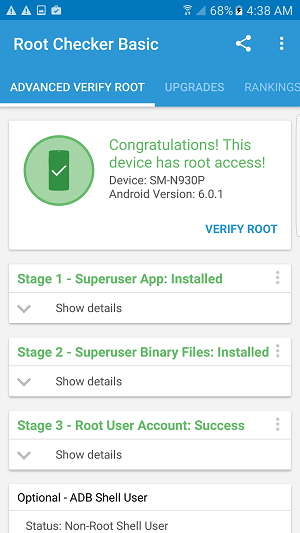
Code: Select all
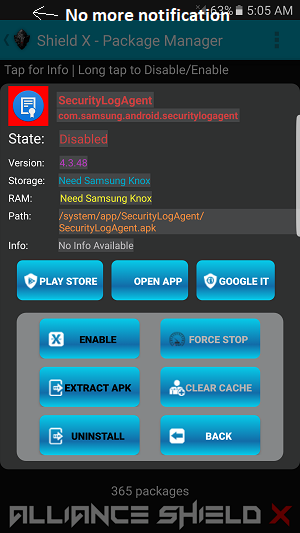
13. Install Alliance Shield, enable v3 with root, reboot then open the shield and go to apps manager. Type SecurityLogAgent and disable it to remove the annoying notification about modified secure storage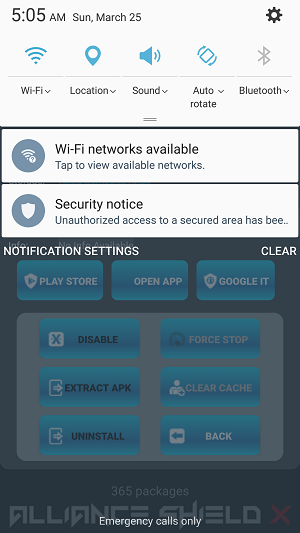
Code: Select all
Next you need to edit the /system/build.propCode: Select all
change:

ro.securestorage.support=true

to:

ro.securestorage.support=false

save, restart and your wifi passwords will be saved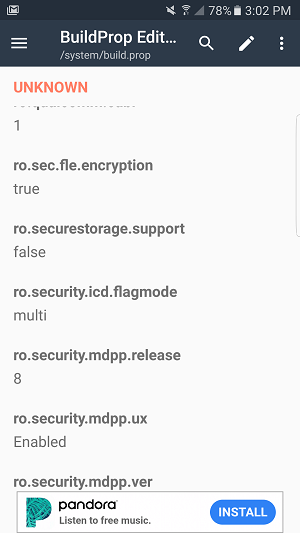
Code: Select all
I used BuildProp editor from the Play store, it has ads but you only need it for 30 seconds
Congratulations your Note 7 is now fully rooted!!!!
Code: Select all
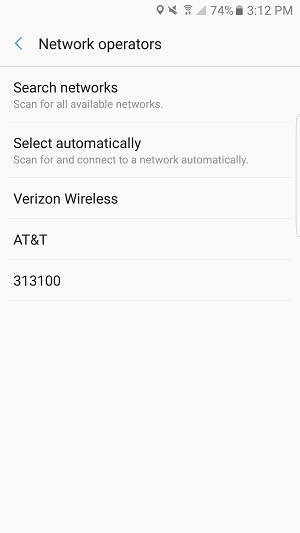
Put your SIM card in if it is out. After power on If you don't have cell connection:
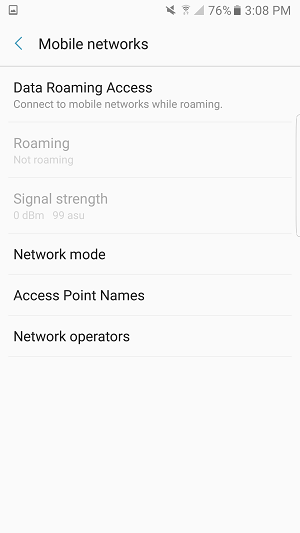
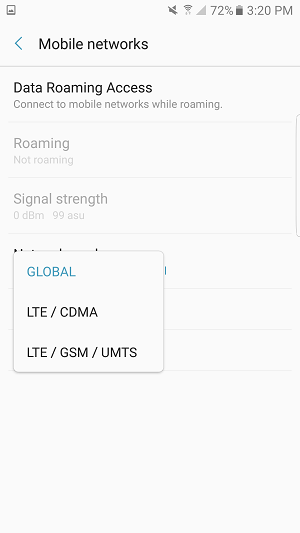
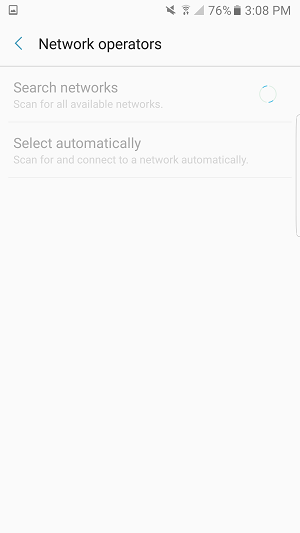
Go to Settings, Mobile Networks, Network Mode -> LTE / GSM / UMTS then Network Operators. It will search for a while then Select your provider. If is asks to switch to Global Mode, allow it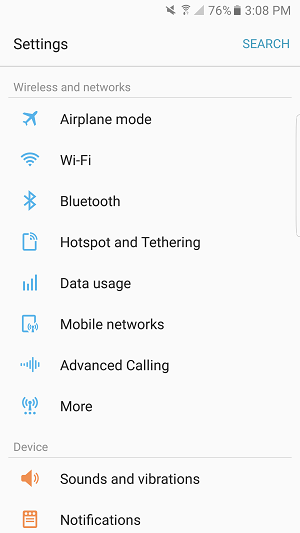
Code: Select all
Add your APN settings if they are not there
I only have Verizon so I can't show the Note 7 on the Network as Verizon is still blocking Note 7's